In Human Resources, Employee Maintenance, choose your employee from the Information tab and then click the Profession tab. Under this tab you will be able to “Add� or “Update� your Employee Certification screen by clicking your Certification button.
Certification
· 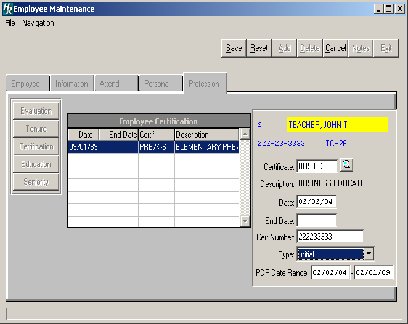 Click the ADD button
·
Enter the certification type code and press TAB. Click the magnifying glass button to view available certification codes. Select a code and click OK.
·
Enter the date of certification and press TAB
·
Enter the expiration date (optional) and press TAB
·
Enter the state certification number and press TAB
·
Under Type use the drop down menu and choose the certification type
·  Enter the PDP date range on the certification that will be linked to the PDP course on the Education screen
·
Click SAVE to save the new information
Back to top
Education
This section will detail the courses that an employee has taken. Click the Education button under your Profession tab.
· 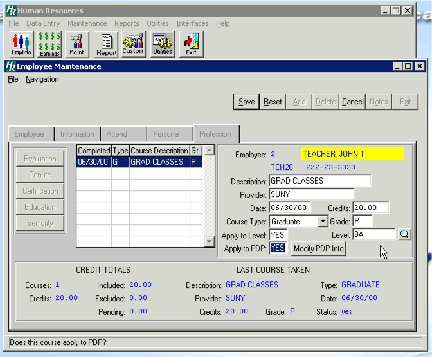 To add a course, click the ADD button
·
Enter the course description and press TAB
·
Enter the course provider (i.e. college or organization name) and press TAB
·
Enter the date that the coursework was completed and eligible for inclusion in the employee records (i.e. date of final grades or release of results) and press TAB
·
Enter in the number of credits and press TAB
·
Select the course type “G� for Graduate, “I� for In service, and “U� for Undergraduate
·
Enter the grade the employee received in the course and press TAB *
* To track a pending course, enter the course upon approval by the Human Resources Department. Upon completion, enter the date completed and course grade. Until a grade is entered, Finance Manager will consider the course as pending.
·
If the course will apply to the employee’s next step increase enter “Y� for yes and press TAB
·
If YES enter the Level or Click the magnifying glass to select from the list of Salary Levels
·
Click SAVE to save the new information
Next Click whether or not this course will apply to PDP.
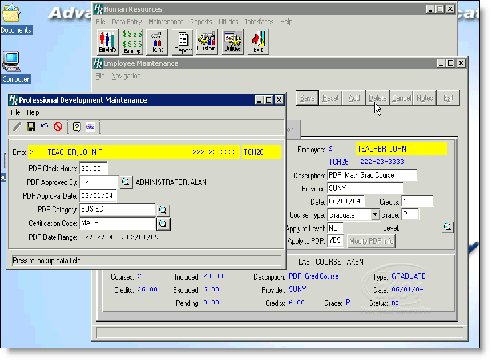
·  If YES, the Professional Development Maintenance screen will appear.
·
Enter Clock Hours
·
Approved by
·
Approval Date
·
PDP Category *
·  Certification Code
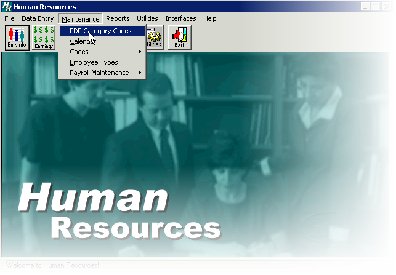
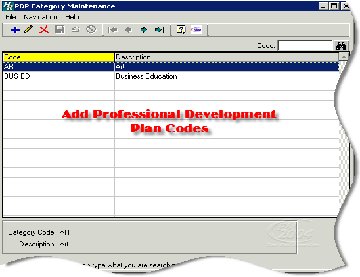
*This code would be entered and come from the PDP Category Maintenance Table from the Maintenance drop-down menu

Back to top
3/2004 Page 1